|
Table of contents:
Note: This online ordering system has been tested with Microsoft Internet Explorer (V5.5 and later) and Netscape Navigator (V7.0 and later). It may or may not work with earlier versions of these browsers or other browsers such as Opera. If you experienced any problems with a browser other than the two mentioned above, please send an email to pizza@doubledouble.ca and let us know. Thankyou.
* This site is best viewed in 1024x768 screen resolution.
This page will help you to get started with our online order taking system.
Just follow the steps below to become a member of Double Double Pizza Chicken community and be able to order your favorite foods online through our SSL secured web site.
Goto Top
Sign Up:
You need to sign up first. To do this, go to 'Home Page' and click on the 'Sign Up' link. Fill the form and select a UserID and Password. You'll use your UserID and Password to login to our system in future. Notice that, by signing up, you'll get $1.00 bonus automatically as a first time Double Double internet customer. Every time you order from us, you'll earn more bonus. As soon as your bonus limit exceeds $3.00, you may use it toward your purchase. You can always check your bonus in 'Account Info' page.
Goto Top
Login:
From the 'Home Page' click on the 'Login' link to go to the login page. Enter your UserID and Password in order to login. If you turn on the 'Remember Me' checkbox, your UserID and password will be filled in to the appropriate text boxes next time you visit this page. This will save you time to re-enter those information in future. If you forgot your user name or password, click on the appropriate link and fill the form with exact information. As soon as you submit the information, an email will be send to you stating the success or failure of the operation.
Goto Top
Order Taking:
Click on this link to go to the main page of our order taking system. On top of this page you'll see a welcome message with your name. It also shows you how many products is sitting in your basket. This page has several links to manage your account and construct your order. You'll see our bulletin board which includes latest news and products in regrads to our online order taking system. Below you'll see a brief description of each link.
Goto Top
Home Page:
Sends you back to the 'Home Page' of Double Double. In this page you'll see random animations, with a navigation bar at the bottom of the page to navigate easily in our web site.
Goto Top
Account Info:
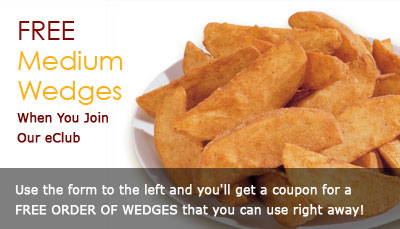
You can always view your registered account information by clicking on this link. There is also a link in this page through which you can view your last 20 orders with their date, time and order amount. This report is sorted by most recent date and time. On the bottom of the page, there is an icon named 'Coupons' through which you can access to the coupon management screen. Time to time, we'll send you free items which you can use while placing order. In this page you can see all available coupons in your account and activate them as you wish by check marking them.
Goto Top
Edit Profile:
Whenever you wish to change any information in your profile (such as address, phone number and ...), go to this page and edit the fields and click on submit button.
Goto Top
Products:
This is one of the links you'll use mostly in our online order taking process. Click on this link to see all or a category of our products. There are different ways to list and view the products. You can list them by category by clicking on one of the items in the category section. If you want to list all available products, just click on 'All' category item. You can list the products based on your budget. If you need to list only products that are equal or less than a specified amount of money, then click on any of the available options in that section. You can even list the products by specifying how many people you want to serve. Just select the number of people from the list box and click on 'List Products' button. If you received our flyer and looking for a product code to order online, just type the code into the text box and click on the 'Go' button. You even have the option to sort the products by Title, Price or Description. To do that, click on the heading of the specified column and the current list will be sorted automatically. In order to add a product, simply click on the appropriate name, then you'll be redirected to the product configuration page through which you can setup the item(s) of that product. Some products are simple and may need no configuration at all. In that case, just click on the 'Add To Basket' button to add it to your shopping basket. There are also some products consisted of multiple items, and each item may need to be configured in turn. Let's go through this by an example. For instance, our 'Deal 1' special is a Small Pizza with 3 Toppings, 10 Wings or 4pc chicken, 10 Potato Wedges and a Garlic Bread. As you see, this product has several items. It also offers you a choice of wings or chicken that you need to select one. In the product configuration page, the items which represent a choice, have a standard radio button on their left side. You need to select one of the choices, otherwise, by clicking on 'Add To Basket' button without any selection being made, a message box will pop-up on your monitor screen to notify you about that fact. On top of the page, you see the product title with it's price and the item(s) listed afterward. Below the product body, you see 'Previous Item' and 'Next Item' buttons. These buttons are used to navigate through product's items. A yellow high lighted line shows that item is currently selected. If the selected product (the one with yellow highlight) is configurable, the appropriate setup options will be appear right underneath the 'Previous and Next Item' buttons, otherwise you'll see no setup options. Some items are configurable like Wings or Pizza. Some are not like Chicken and Potato Wedges. For example, in the case of pizza, you need to select the toppings and specify the crust thickness. For wings you need to specify the type of wings and the sauce (eg. Buffalo with Medium Sauce). When you click on 'Next or Previous Item' buttons, you'll notice that, the highlight jumps over some of the items. The program knows which products are configurable and which are not. So, it by-passes the products which are not configurable. There is another way to select the items in a product other than the Previous and Next buttons. On the right side of each item you see a link with the word 'Setup' or 'Image'. The one with the word 'Setup' means, that item is configurable and by clicking on the link you'll highlight and therefore bring up the configuration portion in order to setup that item. The items with the 'Image' link on the right side, means, that item is not configurable and by clicking on the link you'll highlight the product to only view the image icon for that item. Finally, when you go through all items for a single product and configured them, you can click on the 'Add To Basket' button on the very buttom portion of the page to add the whole product to your shopping basket. Notice that, it doesn't matter which item is highlighted at the time you click on 'Add To Basket' button, it simply adds the whole product with all it's items to the basket. There is another button called 'Reset Selections' right beside the 'Add To Basket' button. This button will only appear when a configurable item is highlighted. By clicking on this button, you can deselect all the selected options for the highlighted item. For example if you selected Pepperoni, Mushroom and Green Pepper for the pizza item of the 'Deal 1' product, you can uncheck mark all those selections, by clicking on 'Reset Selections' button. One last thing is that, you won't see the previous and next buttons for single item products. In that case, you only need to configure the item (if it is configurable) and click on 'Add To Basket' button.
Goto Top
Last Order:
Our order taking system is smart enough to remember your last placed order if any. Click on this link to retrieve it. Remember that your basket contents will be replaced with your last order.
Goto Top
Show Basket:
The basket contains all the products that have been added to it and represents your current order. In order to view your current basket contents click on this link. Through this page you have the capability to either edit or delete the listed items. There is also a 'Quantity' text box beside each individual product with the default value of 1. You can change that number in order to specify the required quantity for that particular product. After changing the number in the quantity text box, you should click on the 'Recalculate' link to update the change as well as the sub total. Remember that, you'll get exactly the same product with the same configuration options you specified during setup for the quantity you specified. For example, let's say you've seleted a 'Deal 1' product with Pepperoni, Mushroom and Green Pepper as pizza toppings, 10 Wings, buffalo style with hot sauce, 10 Potato Wedges and a Plain Garlic Bread and you enter 3 in the Quantity field, you'll get 3 of the above mentioned product with same toppings and wing's type and so on. If you need to order 3 'Deal 1' products with different configuration options, you should add 3 'Deal 1' products seperately and configure each one individually. Click on the 'Edit' link beside each product to go back to the configuration screen and change previously selected settings for that product. Click the 'Delete' link, to remove the product from your shopping basket. You can click on 'Empty Basket' button to empty your entire shopping basket. You can also see a sub total amount (before taxes and delivery charge) of your products in the basket. There is one more thing about the shopping basket. If you login to the system, add some products to the basket and either logout with out clearing the contents of the basket or leave our web site, the basket will hold all the products for you, so next time when you come back to our site, and click on 'Show Basket' link, you'll see the products that you had selected in your last visit are being listed. In order to view the details for a product, click on the row number of any item listed in your basket. A window will open showing a detailed listing of all selected toppings and attributes for that particular product.
Goto Top
Check Out:
As soon as you are ready for check out, click on this link. Here, you can see the total of your order and select the payment method. If you select any of the major credit cards (Visa, M/c, Amex) and enable the 'Save Credit Card Information' check box and then click on 'Send Order' button, your information will be saved, so next time you don't even need to punch in those information again. Later you may delete your credit card information at any time just by disabling the appropriate checkbox and send your order. You also have to specify if it is a pickup or delivery. If you select 'Pickup' the total will be adjusted which no loger contains the delivery charge. You can also specify the time for pickup or delivery of your order. If you want the order to be ready immediately, make sure the 'Regular' item is selected, otherwise, select the 'Later' option and specify the date and time that the order should be ready.
Click on 'Detail' link to view a detail of your order total including taxes. This page also shows you good information about your current bonus status. It shows the old bonus, the amount of bonus collected with current order, and the balance for the new bonus. If you select 'Pickup' as delivery method, a text box will appear with a number in it. This is the store number which delivers to your area and is the nearest one to your location. You can change it by clicking on the change button. By doing so, you'll see a window with all of our stores listed in a table sorted by city. You simply select the store you want for pickup and click on 'Submit' button located at the very bottom of the page. The text box will be updated, reflecting the new store number. If you specified your email address during sign-up process, you'll see a checkbox before submit button that indicates to send a copy of the order to your email address. If you check that box, a copy of the order will be emailed to your email address automatically after submitting your order. Finally after clicking on 'Send Order' button, you'll be presented with the body of your order. Here, you can print a copy for your records.
Goto Top
Log Out:
When you are done with your order and sending it to us, you can simply click on this link to logout your self from our online order taking system. If your basket wasn't empty at the time of logout, a message box will ask you weather you want to empty the basket. If you select 'Yes' your basket will become empty, otherwise, your basket will hold the items until next time you login to our web site.
Goto Top
Help:
By selecting this link you'll see the current page.
Goto Top
Unstable Selections:
If 'Norton Internet Security' is installed on your machine, do the following changes to the program settings to place your order without any problems on our web site:
Norton Internet Security v3 and earlier
- Open 'Norton Internet Security'
- Click on 'Privacy Control'
- Click on 'Turn Off'
Norton Internet Security v4
- Open 'Norton Internet Security'
- Click on 'Privacy Control'
- Click on 'Configure'
- Click on 'Advanced'
- Click on 'Add Site'
- Type 'www.doubledouble.ca'
- Select the added web site on step 6
- Click on 'Global Settings' tab
- Uncheck 'Default Settings' option for all items
- Select 'Permit' for all items
Goto Top
|